
Search all your courses
Assignments, readings, files, quizzes, pages, and due dates show up the moment you start typing.
Canvascope for Chrome
Canvascope 10.1 brings Canvas and Brightspace search, local PDF parsing, OCR search, cited AI answers, practice quizzes, Smart Planner study blocks, syllabus calendar sync, and two-way Lectra handoff into one Chrome extension.
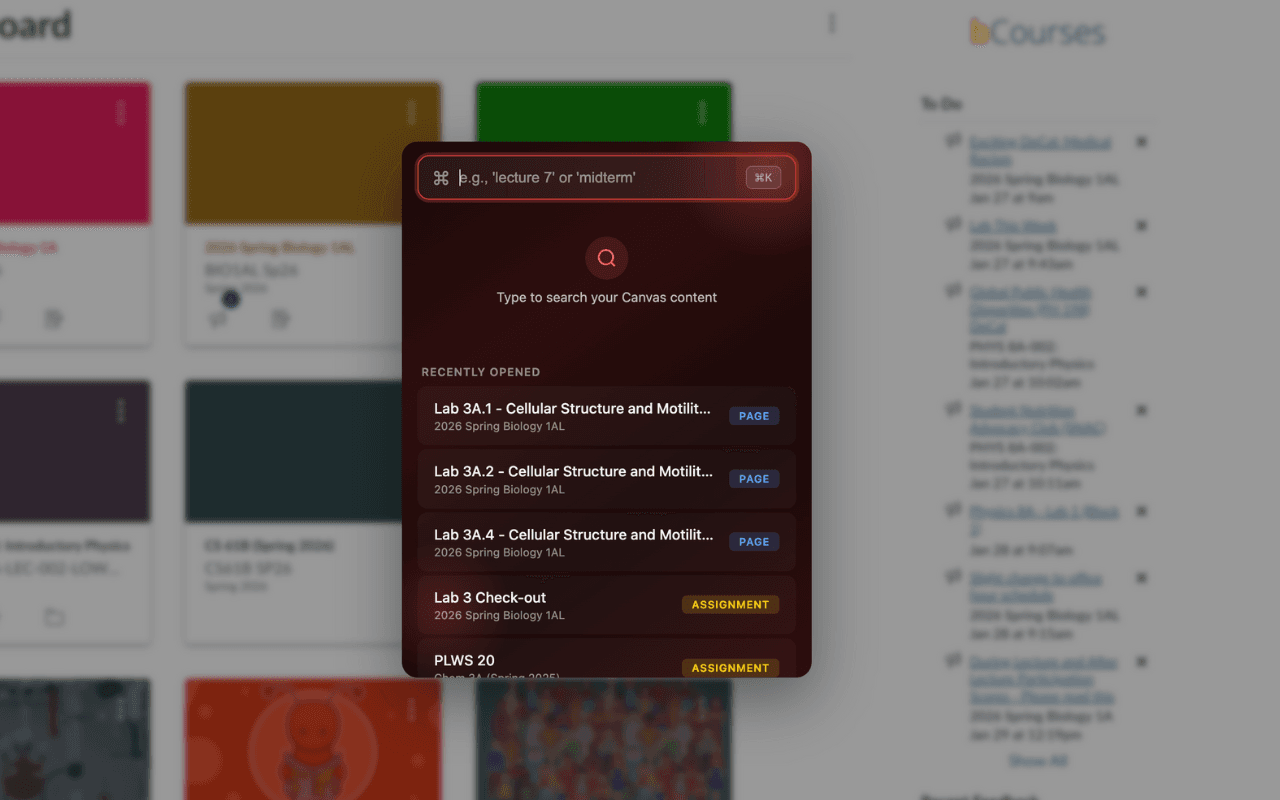
Assignments, readings, files, quizzes, pages, and due dates show up the moment you start typing.
Canvascope parses PDF text locally and can OCR scanned pages and images for future searches.
Ask retrieves from the active LMS page, indexed course files, tasks, notes, and PDF pages, then returns clickable [n] citations.
Smart Planner turns upcoming deadlines into editable study blocks, and /quiz generates practice questions grounded in your course sources.
DropBridge sends readings to Lectra, then Attach from Lectra can bring finished PDFs back into supported browser upload flows.
Syllabus Autopilot can extract course dates and send selected events to Google Calendar after sign-in.
Shortcuts
Ask a course question and get an answer grounded in the active page plus indexed course material.
Let AI draft study blocks from upcoming deadlines, then edit before saving.
Generate practice questions and answers from the course context Canvascope has indexed.
Extract schedule items from a syllabus and optionally write them to Google Calendar.
Your privacy
Your courses and search index live in browser storage by default. Nothing about what you're studying gets sent off to make search work.
Signing in, calendar sync, cloud AI fallback, and document handoff are explicit connected flows you choose to use.
Google cross-account protection events can revoke or block sessions when a connected account is compromised or disabled.
Works with Lectra
When a reading needs more than a quick look, send it to Lectra, our iPad companion, through DropBridge v3 and annotate it with your Apple Pencil. Your notes stay tied to the original file.
Meet LectraOpen a reading or PDF in one of your courses.
Tap Send to Lectra.
DropBridge v3 wakes the receiver and records delivery status.
Open it in Lectra, write with Apple Pencil, and keep the file tied to its course context.
Use Attach from Lectra in supported browser upload flows when the finished PDF needs to come back.
Questions
Yes. Canvascope is a free Chrome extension. Install it from the Chrome Web Store and start searching your courses right away, with no subscription required.
Yes. Canvascope searches across Canvas (Instructure) and Brightspace (D2L) courses, including assignments, readings, files, quizzes, pages, and due dates.
Canvascope is local-first. Your course index and search data live in browser-local storage by default. Connected features like Google sign-in, calendar sync, cloud AI fallback, and Lectra handoff only run when you explicitly choose them.
Yes. Canvascope parses PDF text locally and can OCR scanned pages and images so their contents show up in future searches.
The Ask side panel retrieves the active LMS page plus your indexed course files, tasks, notes, and PDF pages, then returns answers with clickable [n] citations back to the source material.
Open a reading or PDF, tap Send to Lectra, and DropBridge v3 delivers it to the Lectra iPad app with realtime wakeups and delivery receipts. After annotating with Apple Pencil, Attach from Lectra can bring the finished PDF back into supported browser upload flows.
Get it
It installs quickly, keeps core search local, and exposes connected AI fallback, calendar, and Lectra workflows only when you choose them.