A guide for iPad and Apple Pencil, last checked September 1, 2026
How to annotate Canvas lecture slides on iPad
Two problems sit between a lecture deck posted in Canvas and a marked-up copy on your iPad: getting the file across, and choosing the app you write in. This guide covers the share-sheet route that works with any note app, the detour for when your instructor posted PowerPoint instead of PDF, the one-tap route if you run our extension, and a table of the four apps most students end up choosing between.
Route A: share it into your note app
This works with every app on this page and needs nothing installed beyond the note app itself. It takes four steps, and they are the same four steps whether you start in Safari or in the Canvas Student app.
- Open the file in your course, from Files, Modules, or wherever the instructor posted it. A PDF usually previews in place.
- Download it. In Safari the preview has a download control, and in the Canvas Student app you open the file and use the share or export control. The file lands in Files, usually in Downloads or On My iPad.
- Tap Share and pick your note app from the row of app icons. If it is not there, scroll the row and use the option at the end to show more apps.
- The note app opens with the file. Most ask whether it should become a new document or be added to one you already have. Pick one, then start writing with Apple Pencil.
Where it gets annoying: the download is a copy, so nothing you write on it ever goes back to Canvas, and nothing tells you when the instructor replaces the deck with a corrected version. Files arrive named whatever the instructor saved them as. Do this for four courses a week and you are managing a second, messier library alongside the one in Canvas. It still works, and for one deck it is the fastest thing you can do.
If the file is a .pptx
Canvas serves whatever the instructor uploaded, and slides are often PowerPoint files instead of PDFs. Note apps are built around PDFs, so convert first.
- Open the downloaded .pptx in Keynote, which is free on iPad and whose App Store listing says it imports and edits Microsoft PowerPoint presentations (checked September 1, 2026).
- Tap the Actions button in the toolbar, tap Export, then choose PDF. That is the path Apple's Keynote for iPad guide documents (checked September 1, 2026).
- Share the exported PDF into your note app as in Route A.
Microsoft's own PowerPoint app can open the deck too, but its App Store listing ties editing and saving to a Microsoft 365 subscription, so check that before you rely on it (checked September 1, 2026). Either way, converting flattens animations and build slides. A deck that reveals one bullet at a time becomes a page with every bullet showing, which is usually what you want to write on anyway.
Route B: one tap from Scope for Canvas
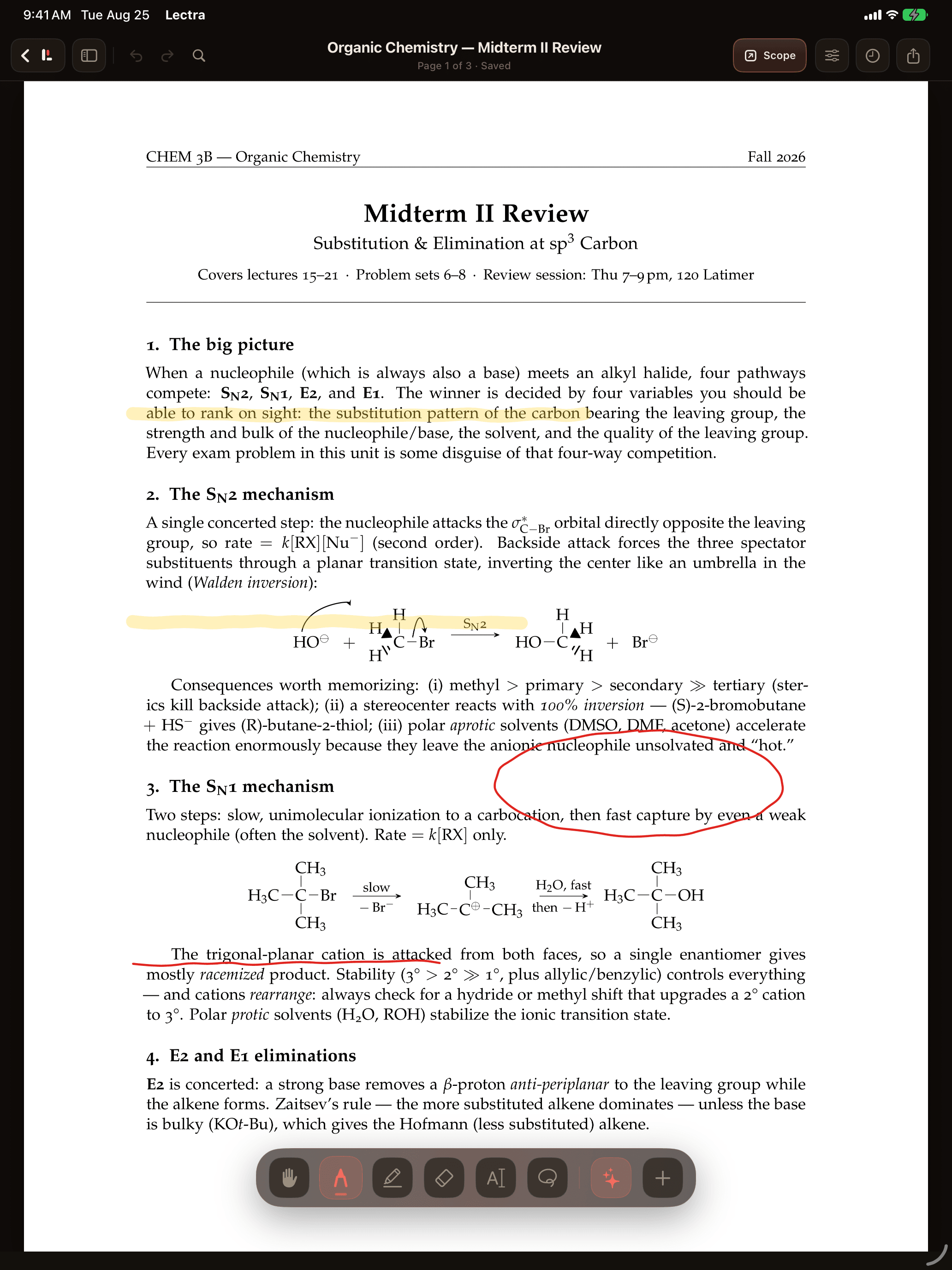
Lectra Notes is a free iPad and iPhone app from Scope for handwritten notes and Apple Pencil PDF markup, with Python notebooks, a terminal, and Git that run on the device.
Scope for Canvas is the free Chrome extension we make for the other half of this. Send a PDF from Canvas to your iPad in one tap with the Scope extension, and finished files can come back into supported upload flows. You stay on the course page in your browser, pick the file, and it opens on the iPad ready to write on.
Here is exactly what that is. It is a handoff you trigger, once, for a file you chose. No app syncs with Canvas automatically, including this one and every other app on this page. If your instructor posts a corrected deck tomorrow, you send it again.
- What you get on the iPadApple Pencil markup on the slides with a pressure-responsive pen, highlighter, eraser, and shapes, plus blank pages when you want to work something out beside the deck.
- What comes back outAn export that keeps the PDF's own selectable text and adds a searchable layer over your handwriting, so the marked-up copy is still findable later.
- What it costsNothing. Lectra Notes 9.0 is free with no tiers, file caps, or watermarks (App Store, checked September 1, 2026). The extension is free too.
If you would rather not install anything on your laptop, Route A works exactly as well here, because Lectra Notes takes files from the share sheet like every other note app. See Lectra Notes for what the app does once the file is open, or the extension for what it does inside Canvas.
Which app to write in
Four apps cover most of what students actually use for slide annotation. Prices and store facts below were read on September 1, 2026. One column is ours, and there is one row we could not verify at all, so it says so.
| Feature | Goodnotes | Notability | Apple Notes | Lectra Notes |
|---|---|---|---|---|
| Price | Free tier capped at 3 files with watermarked exports. Essential $11.99/yr, Pro $35.99/yr, AI Pass +$9.99/mo (goodnotes.com/pricing and App Store). | Free Starter plan capped at 5 notes. Lite $14.99/yr, Plus $19.99/yr, Pro $99.99/yr, Classic $49.99 once (App Store). notability.com/pricing showed Plus at $15.99/yr the same day. | Free, and already installed on the iPad. | Free, with no tiers, file caps, watermarks, or ads. Version 9.0. |
| Getting a Canvas PDF in | Share sheet from Safari, Files, or the Canvas Student app. Its App Store listing also offers importing by emailing documents to a personal Goodnotes address. | Share sheet. Its App Store listing describes importing and handwriting on PDFs, documents, and presentations. | Share sheet into a note, or drag the file in. PDFs attach inside the note instead of opening as their own paged document. | Share sheet, or one tap from the Scope extension while you are on the course page. |
| Apple Pencil tools | Polished, well-tuned ink, and it converts handwriting to typed text. | Pen, highlighter, and shapes, with handwriting search listed on paid plans. | Pencil drawing straight onto an inline PDF, Scribble, and handwriting search. It is capable, but it is not a paged annotation workflow. | Pressure-responsive pen, highlighter, eraser, shapes, and a ruler, and ink stays sharp at any zoom. No handwriting-to-text conversion. |
| Audio recording | Yes, with recording synced to the moment you wrote. About 20 minutes on the free tier, unlimited on paid plans. | Yes, with recording synced to your notes and transcription listed on paid plans. It is the strongest pick here for lecture-heavy classes. | Yes on recent iPadOS versions, with automatic transcripts. | Yes, added in version 8.0 on September 1, 2026. It records the lecture while you write, you can tap a stroke to hear what was said at that moment, and transcription runs on the device. It is new and has not been through a full term of use, and Notability and Goodnotes have years of polish here. |
| Export keeps selectable text? | Not verified for this guide. Export one deck and try selecting a line before you commit. Free-tier exports carry a watermark. | Not verified for this guide. Export one deck and try selecting a line before you commit. | Not verified for this guide. Export one note and try selecting a line before you commit. | Yes. Exports keep the PDF's own text and add a searchable layer over your handwriting. |
| Works offline | Writing works offline. Sync, collaboration, and its AI features are cloud services. | Writing works offline. Sync and its AI features are cloud services. | Yes, and changes sync when you reconnect. | Yes. The whole app, including its study tools, runs on the iPad. |
Swipe the table sideways to see every column.
Tips
- Put Canvas and your notes side by sideSplit View with the browser or the Canvas Student app on one side and the note app on the other saves the app-switching round trip while you are pulling several files from one module.
- Give yourself room the slide does not haveSlide margins are thin. Add a blank, lined, or grid page after each dense slide (most note apps let you insert one mid-document) and work the derivation out there instead of squeezing it into a corner.
- Keep the original untouchedAnnotate the copy on your iPad and leave the file you re-download before the exam alone. The version in Canvas stays the reference, and if the instructor replaces it you can compare instead of guessing.
- Rename on the way inDownloads arrive with whatever filename the instructor used. Renaming to the course code and lecture number as you import takes thirty seconds and makes the file findable in week eleven.
Questions people ask
Can Goodnotes open files from Canvas?
Not on its own. Goodnotes has no connection to Canvas. You download the file from your course, then share it into Goodnotes, which imports PDFs and other documents (App Store listing, checked September 1, 2026). That is true of every app on this page, and the only difference is how many taps the download takes.
Is there a note app that works with Canvas?
No app syncs with Canvas automatically. What exists is a handoff you trigger: send a PDF from Canvas to your iPad in one tap with the Scope extension, and finished files can come back into supported upload flows. It does not watch your courses, and a deck the instructor updates tomorrow is a file you send again.
Can I annotate PowerPoint slides on iPad?
Yes, once it is a PDF. Keynote is free on iPad, imports PowerPoint files, and exports PDF from the Actions button in the toolbar (checked September 1, 2026), so share that PDF into your note app. Some note apps advertise importing presentations directly, but converting first is the predictable route, and either way, builds and animations flatten into finished pages.
When this was last checked
Checked on September 1, 2026. Prices and app facts on this page were read that day from goodnotes.com/pricing, notability.com/pricing, and the App Store listings for Goodnotes, Notability, Apple Notes, Keynote, Microsoft PowerPoint, and Lectra Notes. Stores change prices and tiers without notice, and the export row above says plainly that we did not test it.